Showing posts with label sccm. Show all posts

Friday, January 18, 2013

MP Control Failed To Start

Error :


SMS_MP_CONTROL_MANAGER failed to start with 0x8004100e SMS_MP_CONTROL_MANAGER in MPCONTROL.LOG

Cause :


0x8004100e = WBEM_E_INVALID_NAMESPACE

Resolution :


To resolve above problem needs to check WMI Permissions or follow below steps.

1) Reboot Site Server. ( also Reboot Database server if installed separately. )  OR

2) Uninstall SCCM Client from Site Server.    OR

3) Open Command Prompt on Site server and type winmgmt /salvagerepository  command to refresh WMI Permission.   OR

4) Reset Site System will reinstall Management Point.


Friday, January 4, 2013

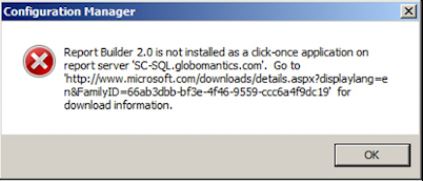
Facing Issue while running Report Builder in SCCM 2012

Facing Problem to run SQL Report builder Tool from SCCM 2012 Server.


Cause :

if you are using SQL 2008 R2 server for SCCM 2010 in your orgenization,

By default SCCM 2012 server configured to use report Builder 2.0 and SQL 2008 R2 uses Report Builder 3.0 version which needs to change.

Resolution : 

in order to resolve this issue needs to modify Registry value as mentioned below.

1. Go to RUN and Open Regedit.exe / regedit32.exe

2. \HKLM\Software\Wow6432Node\Microsoft\ConfigMge10\AdminUI\Reporting\ReportBuilderApplicationManifestName.

3. Change the Value from "ReportBuilder_2_0_0_0.application" to "ReportBuilder_3_0_0_0.application"

4. That's It!!!!


Portal Web Site Control Manager detected PORTALWEB is not responding to HTTP requests. The http status code and text is 500, Internal Server Error.

Facing Error accessing the Application Catalog Web Site on SCCM 2012.

Status Message Error in SCCM:
Component: SMS_PORTALWEB_CONTROL_MANAGER

Message ID: 8000

Description:

"Portal Web Site Control Manager detected PORTALWEB is not responding to HTTP requests. The http status code and text is 500, Internal Server Error."

Cause :

This issue occurs because the Applicationhost.config file for Windows Process Activation Service (WAS) has the following section defined, and this section is incompatible with the .NET Framework 4.0:
<add name="ServiceModel" type="System.ServiceModel.Activation.HttpModule, System.ServiceModel, Version=3.0.0.0, Culture=neutral, PublicKeyToken=b77a5c561934e089" preCondition="managedHandler" />
This section should be defined as follows:
<add name="ServiceModel" type="System.ServiceModel.Activation.HttpModule, System.ServiceModel, Version=3.0.0.0, Culture=neutral, PublicKeyToken=b77a5c561934e089" preCondition="managedHandler,runtimeVersionv2.0" />

This is caused by an issue with .Net 4.0, so perform the following on the Web Server hosting the Application Catalog Website Point (and also possibly the Application Catalog Web Service Point - In my tests, both roles are on the same system):

Resolution Steps :

1) Open Command Prompt ( cmd.exe ) on SCCM server or where you have installed Application Catalog Role installed.

2) Navigate to  below path

%windir%\Microsoft.NET\Framework\v4.0.30319
OR
%windir%\Microsoft.NET\Framework64\v4.0.30319 (on a 64-bit computer)

3) Run   "aspnet_regiis.exe /iru" Command.

4) that's It!!!!!!!


For more information please Go through below Microsoft Knowledgeable Article.

Related Technet article: http://support.microsoft.com/kb/2015129

Tuesday, July 17, 2012

ERROR : There was an error updating the package for security update for windows xp

ERROR : There was an error updating the package for security update for < Update Name >


After I have gone through the steps in the "Deploy software updates wizard", I get to the confirmation page and have success in all the items except the last one. The message says: "Warning: There was an error updating the package for Security Update for Windows XP  and other related updates". I get this message on all of the Security Updates I am trying to deploy in this package. When I check the share where I configured the updates to be downloaded to, they are all present. but still getting the same error as mentined below picture.


to reslove this error please follow below steps or check configuration.

1) Check SCCM Server user permission.
2) Add Package on Distribution Point and update.
3) check Firewall configuration if necessary please open Websites and ports as mentioned in http://technet.microsoft.com/en-us/library/bb693717.aspx  technet Article.
4) Check Share and Security Permission of WSUS update package source folder and give permission as below.

Share & Security permission
*  Network Services                Full permission
*  SCCM Computer Account   Full permission.
*  Local Administrator Group   Full permission
*  Domain Admin                     Full Permission
* Sccm admin                          Full permission

5) Check Temp Folder permission or restricion via GPO.

Some time user doesn't have temporary folder permission due this reson you can face "Access Denied" error.

When sccm start downloading updates from microsoft website then it will store in to Temporary folder first and then copy to the destination folder to overcome this error check Windows Temporary folder permission.

Now Try to download windows update it should work.


Cheers!!!
Gaurang Patel

Tuesday, May 8, 2012

SCCM Capture Media not able to Capture Reffrence Computer image.

When trying to capture a new image of DELL Optiplex 790 windows 7 Proff SP1.  After I fill in the relevant information to save to a network share on a SCCM Server itself and then select finish, the windows disappears and does nothing.
i looked for Sysprep Folder in %System Drive %\windows32\Sysprep but it was present and able to run properly.
Checked Computer Network Access Account on SCCM Server and for Local Computer also then after
  i have looked at the logs and this is what it states:

AllocateCDRoms is set; will not start TSManager

This seems to halt the capture process and nothing else happens.
i have also plugged in an external drive to capture the image to this, and the same error comes up.

Cause :

AllocateCD Rome is Restricted by Group Policy when it was in Domain or by default set by some OEM vendors.

SCCM Capture media uses SYSTEM and Domain Account for Capturing the Windows Image but GPO is only allow CD ROM access to Logged on Users in result Capture wizard Finished without any capture process.

Resolution :

"allocatecdroms" is the REG Key value which is responsible for the CD ROM access.

By default the Value is "0" if this value is "1" that means CD ROM access has been restricted for Local logged on users only.

To resolve this issue set REG Key value to Default "0" and save it.

close Regedit and Restart Computer.

Start Capture wizard again and check...

For More information Please browse Microsoft Technet Article for the same...

http://technet.microsoft.com/en-us/library/cc957388.aspx

Cheers!!!!!

exchange spam filter exchange spam filter exchange spam filter exchange spam filter exchange spam filter

Wednesday, May 2, 2012

Windows Deployment Service Fail to start in 2003 and 2008 with SCCM

Windows Deployment Service Fail to start in 2003 and 2008 with SCCM.

I have a Windows 2008 Server that has WDS + SCCM 2007 R3 installed.  The Windows
Deployment Services Server Service isn't started and when I try to
Start  it I got a message that says:

Windows could not Start the Widows Deployment Services Server on Local
Computer.  For more information, review the System Event Log.  If this
is a non-Microsoft service, contact the service vendor, and refer to

server-specific error code 2310.
Event viewer lists Event ID 257 and this:
An error occurred while trying to Start the Windows Deployment Services
server.
 Error Information: 0x906
  
Hear is the Problem Analysis and Resolution of below errors.

CAUSE :

This problem occurs because the location of the computer object that is running WDS has changed in the Active Directory directory service.

A Windows Deployment Services (WDS) server is running Microsoft Windows Server 2003 with Service Pack 1 (SP1) or Microsoft Windows Server 2003 with Service Pack 2 (SP2). If you move the WDS server to a different organizational unit, the WDS server may not start. Additionally, one of the following error messages may be logged in the System log on the WDS server:

Error Messages :

Error message 1
Type: Error
Event ID: 7024 Source: Service Control Manager
Description: The Windows Deployment Services Server service terminated with service-specific error 9 (0x 3).
exchange spam filter exchange spam filter exchange spam filter exchange spam filter exchange spam filter Error message 2
Type: Error
Event ID: 7024 Source: Service Control Manager
Description: The Windows Deployment Services Server service terminated with service-specific error 19 (0x13)
One of the following groups of error messages may also be logged in the Application log:

Error message group 1

Type: Error
Event ID: 261
Source: WDSPXE
Description: An error occurred while trying to initialize provider BINLSVC loaded from C:\WINDOWS\system32\binlsvc.dll. If the provider is marked as critical the Windows Deployment Services server will be shutdown. Error Information: 0x 3

Type: Error
Event ID: 1800 Source: BINLSVC
Description: An error occurred while creating the Service Control Point object for this Windows Deployment Services server in Active Directory Domain Services. Error Information: 0x 3

Type: Error
Event ID: 1803
Source: BINLSVC
Description: An error occurred while attempting to locate the Service Control Point object for this Windows Deployment Services server in Active Directory Domain Services. There was an error reading the 'netbootSCPBL' attribute from the Computer object. Error Information: 0x2
Error message group 2

Event Type: Error
Event Source: BINLSVC
Event ID: 1803 Description: An error occurred while attempting to locate the Service Control Point object for this Windows Deployment Services server in Active Directory Domain Services. There was an error reading the 'netbootSCPBL' attribute from the Computer object. Error Information: 0x2

Event Type: Error
Event Source: BINLSVC
Event ID: 1800 Description: An error occurred while creating the Service Control Point object for this Windows Deployment Services server in Active Directory Domain Services. Error Information: 0x13

Event Type: Error
Event Source: WDSPXE
Event ID: 261 Description: An error occurred while trying to initialize provider BINLSVC loaded from C:\WINDOWS\system32\binlsvc.dll. If the provider is marked as critical the Windows Deployment Services server will be shutdown. Error Information: 0x13

Event Type: Error
Event Source: WDSPXE
Event ID: 265 Description: An error occurred while trying to initialize provider BINLSVC. Since the provider is marked as critical, the Windows Deployment Services server will be shutdown. Error Information: 0x13

Event Type: Error
Event Source: WDSServer
Event ID: 513 Description: An error occurred while trying to initialize provider WDSPXE from C:\WINDOWS\system32\wdspxe.dll. Windows Deployment Services server will be shutdown. Error Information: 0x13

Event Type: Error
Event Source: WDSServer
Event ID: 522
Description: An error occurred while trying to shutdown provider WDSPXE. Error Information: 0x6

RESOLUTION :

To resolve this problem, reinitialize the WDS server after you move the WDS server to a different organizational unit. To do this, follow these steps:
  1. Click Start, click Run, type cmd, and then click OK.
  2. At the command prompt, type wdsutil /uninitialize-server, and then press ENTER.
  3. Move the WDS account to Active Directory in the new organizational unit.
  4. To reinitialize the WDS service, type wdsutil /initialize-server /reminst:{RemoteInstallFolder} at a command prompt, and then press ENTER.

Enjoy!!!!

Tuesday, May 1, 2012

Enabling workgroup clients to locate SMS and ConfigMgr site systems using LMHOSTS files

System Center Configuration Manager can Manage Workgroup Computer clients but Workgroup computers must be able to locate a server locator point for site assignment and their default management point in order to be managed. Because workgroup clients cannot query Active Directory Domain Services to find these site systems, in this situation, you have three options:

  1. The server locator point can be specified in the CCMSetup.exe installation command-line parameters. For more information about doing this see About Configuration Manager Client Installation Properties at: http://technet.microsoft.com/en-us/library/bb680980.aspx.
  2. You can manually publish the server locator point and management point in WINS. For more information about doing this see, How to Manually Add Configuration Manager Site Information to WINS at: http://technet.microsoft.com/en-us/library/bb632567.aspx.
  3. The server locator point can be specified in the LMHOSTS file on workgroup computers when a WINS server is not available
For Workgroup clients to locate these site systems, you need to enable some sort of NetBIOS name resolution. If you do not have a WINS server in place to support these clients, you can use an LMHOSTS file to enable site system name resolution for Workgroup clients.
To use the LMHOSTS file for site system name resolution, just add the following information (where <site code> is the site code for the primary site the client should be assigned to) to the LMHOSTS file. The LMHOSTS file is generally located in the client's %WINDIR%\system32\drivers\etc directory:
<IP address of MP> "MP_<site code> \0x1A" #PRE
<IP address of SLP> "SMS_SLP \0x1a" #PRE

NOTE: For the lmhosts file to work, it should not have a file extension. If you only find the lmhosts.sam (sample file) in that location just modify the file for your purposes and save it without the .sam file extension.
Because these names contain special characters, they must be enclosed in quotation marks. There must be a total of 20 characters within the quotation marks. There must be a total of 20 characters within the quotation marks. Yes, I wrote that twice on purpose for emphasis! If there aren't 20 characters in the name then using the LMHOSTS file for this will not work. Make sure that the backslashes are at the 16th character the end quotes should be after the 20th character.
Here's a handy trick for doing this that I picked up from How to write an Lmhosts file for domain validation and other name resolution issues (http://support.microsoft.com/kb/180094):
There must be a total of 20 characters within the quotations (the domain name plus the appropriate number of spaces to pad up to 15 characters, plus the backslash, plus the NetBIOS hex representation of the service type).

To help determine where the sixteenth character is, copy the following line to your Lmhosts file:
# IP Address "123456789012345*7890" Line up the double quotation marks (") by adding or removing spaces from the comment line, and put the \ on the sixteenth column (the column marked with the asterisk). You must use spaces after the name and before the \, not a tab.
After that has been done, to verify it worked just open up a command prompt and enter the following command to refresh the name cache:
nbtstat -R

Tuesday, April 10, 2012

0x80070091 error while upgrading Windows XP to Windows 7 by SCCM 2007

Hello Friends,

Today i am trying to updgrade operating system windows xp to windows 7 by using System Center Configuration Magager (SCCM) 2007 R3.
i have made Task Sequence by using Microsoft Deployment tool kit 2010 Update 1 and advertise on collection, but while "wimping C:\ Drive " step task sequence gets failed..... I tried many times with new task sequece and face same error like mentioned in image.

Cause :

This error occured due to task sequece engine may not able to wipe c:\ Drive propperly or some files which is having wrong file extention or ended with # or ended with ( dot .) or some corrupt files.

Resolution :

1) Run chkdsk command if task sequence fail. ( this command may take lot of time to complete operation )
2) Press f8 while facing error and manually delete currept profile.
3) or write Script to delete currupt files.

For more information please refer http://blogs.msdn.com/b/alex_semi/archive/2012/02/22/os-refresh-fails-with-ntldr-can-t-be-found-error.aspx


exchange spam filter exchange spam filter exchange spam filter exchange spam filter exchange spam filter

Determine when the operating system was installed on a computer

Determine when the operating system was installed on a computer

Introduction

The Win32_OperatingSystem WMI class can be used to gather useful information about the Operating System. It supports many properties, out of which the InstallDate property is used to determine the Operating System installation date in a computer.

Script to determine the Operating System installation date

To run the script, copy the following lines to a Notepad document, and save as a file with .VBS extension (use double-quotes) and double-click the file. The installation date and time would be displayed.
' © 2006 Ramesh Srinivasan.
'Returns the Operating System installation date.

strComputer = "."
Set dtmInstallDate = CreateObject( _
  "WbemScripting.SWbemDateTime")
Set objWMIService = GetObject("winmgmts:" _
  & "{impersonationLevel=impersonate}!\\" _
  & strComputer & "\root\cimv2")
Set colOperatingSystems = objWMIService.ExecQuery _
  ("Select * from Win32_OperatingSystem")
For Each objOperatingSystem in colOperatingSystems
  MsgBox "Install Date: " & getmydat (objOperatingSystem.InstallDate)
Next
Function getmydat(wmitime)
  dtmInstallDate.Value = wmitime
  getmydat = dtmInstallDate.GetVarDate
End function

Two more methods - For Windows XP Professional systems

Systeminfo.exe console-utility

Systeminfo command-line tool displays detailed configuration information about a computer and its operating system, including operating system configuration, security information, product ID, and hardware properties, such as RAM, disk space, and network cards. More information available at Microsoft Windows XP - Systeminfo

WMIC - command-line tool

Click Start, Run and type:
CMD /K WMIC OS GET InstallDate
You'll see the Operating System installation date (in WMI format). The first eight characters in that output gives you the installation date.

Tuesday, March 20, 2012

SCCM Client installation Fail error 1601.

While installating SCCM client in systems via client push and Manuall installation, facing below error.

"Installation failed with error code 1601"

by accessing ccmsetup.log on perticular client  and server i found above error,

Cause : 

This is a fatal error while installing SCCM client with Windows installer service.

Resolution :

1) open command prompt.
2) Access effected computers by using PSEXEC.
3) type command "net start msiserver"

if above command gives error or could not find specific service in computer then download windows installer service and install it.
hear is the download link : http://support.microsoft.com/kb/942288

Windows Installer 4.5 is now available as a redistributable system component for the following operating systems:
  • Windows Server 2008, 32-bit editions
  • Windows Server 2008, 64-bit editions
  • Windows Server 2008, Itanium-based editions
  • Windows Vista
  • Windows Vista Service Pack 1 (SP1)
  • Windows XP Service Pack 2 (SP2)
  • Windows XP Service Pack 3 (SP3)
  • Windows Server 2003 SP1
  • Windows Server 2003 SP2

Regards,,

Gaurang Patel

Tuesday, March 13, 2012

Run Charts in ConfigMgr Reports when the Reporting Point is located on a Windows Server 2008 x64 server / HTTP Error 500.19 – Internal Server Error


At a customer site last week, I used Windows Server 2008 x64 to host all the ConfigMgr roles, including the Reporting point. I also installed the Microsoft Office Web Components to add chart support to some of the reports. But I kept getting this error “This report has a chart, but the Microsoft Office Web Components required to view charts are not installed on the Reporting Point. Please contact your administrator." I remember reading Some blogs about changing the whole web server in Windows Server 2003 x64 to run as a 32 bit web server. So narrowing down the problem is that the Microsoft Office Web Components is 32 bit application and the Reporting Point is running in the Default Application Pool (DefaultAppPool) on the web server, which is running 64 bit.

You might have read that in Windows Server 2008 x64 web server is it possible to run different applications in different worker processes. This means that by changing the application pool for the Reporting Point to run as a 32 bit application, is it possible run the Charts in the ConfigMgr web reports. So I did and problem solved.
After installing System Center Configuration Manager 2007 SP2 (SCCM) on a Windows Server 2008 SP x64 system, I decided to install also the Reporting Point on this Site Server.

SQL Reporting Services and ConfigMgr Report Services Point configured properly and I didn't had any issues copying and running reports on IIS 7.0. But when I came to a report that had a graph I got the following message:

"This report has a chart, but the Microsoft Office Web Components required to view charts are not installed on the Reporting Point. Please contact your administrator."

I downloaded and installed in the Office 2003 Add-in: Office Web Components from


After that, I tried to run again the report and still I was getting the same informational message.

After doing some research on the issue I found that I need to create a custom Application Pool with enable32BitAppOnWin64 set to True. This because the worker responsible to execute the graphs needs to operate in 32bit mode. Then I've assigned the reporting point web site to the custom 32bit application pool and when I tried to open the reporting point web site on a browser I got a new error message.

HTTP Error 500.19 – Internal Server Error


So I started wondering what causes the problem. After some research again I identified that it was WSUS 3.0 SP2 x64 and more specifically the 64bit version compression module (suscomp.dll).

Therefore the solutions on this were the following. Either disable totally the compression scheme on the web site, but this will cause wsus responses to be uncompressed and this will cause some performance degradation. Or to replace the 64bit version of suscomp.dll with the 32bit version.

To view the compression scheme, run the following command

%windir%\system32\inetsrv\appcmd.exe list config -section:system.webServer/httpCompression

the command will display the compression scheme for the webserver. Schemes are registered globally therefore by removing them, the compression is disabled on the webserver.

To remove the compression scheme type:

%windir%\system32\inetsrv\appcmd.exe set config -section:system.webServer/httpCompression /-[name='xpress']

To add the compression scheme type:


%windir%\system32\inetsrv\appcmd.exe set config -section:system.webServer/httpCompression /+[name='xpress',doStaticCompression='false',dll='%windir%\system32\inetsrv\suscomp.dll']

References

Run Charts in ConfigMgr Reports when the Reporting Point is located on a Windows Server 2008 x64 serverhttp://uje.spaces.live.com/blog/cns!DAE27042D25E8A2A!310.entry

500.19 Error When Enabling 32-bit Application Poolhttp://forums.iis.net/t/1149768.aspx

Error message when you visit a Web site that is hosted on IIS 7.0: "HTTP Error 500.19 – Internal Server Error"http://support.microsoft.com/kb/942055