In Place Upgrade Of Windows Server 2008 R2 Standard To Enterprise Or Datacenter Edition
If you want to
upgrade a server running Windows Server 2008 R2 Standard to either the
Enterprise, or Datacenter editions, it’s possible to do so online, without
re-installing Windows.
Suggested Method will not disturb your existing Windows installation or applications installed on previous version.
Here i will show you the step by step upgradation of windows standard to datacenter edition, if you want to upgrade to Enterpise edition than just use "ServerEnterprise" insted of "ServerDataCenter" with Enterprise Product key as mentioned below product key table.
So are you ready to upgrade??? let's Start...
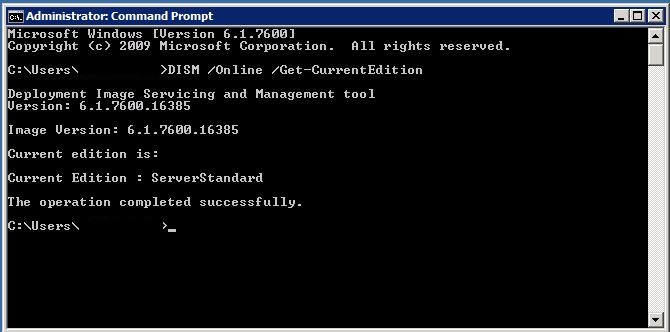
Open
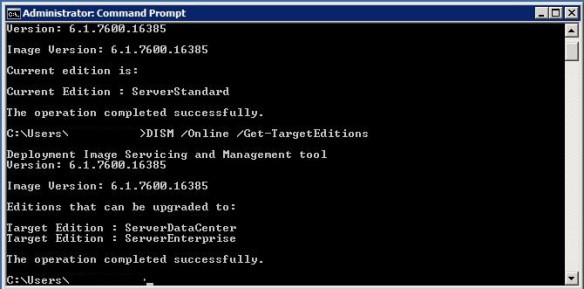
command prompt with run as Administrator rights and type DISM /Online /Get-CurrentEdition. This will
return the current Windows version.

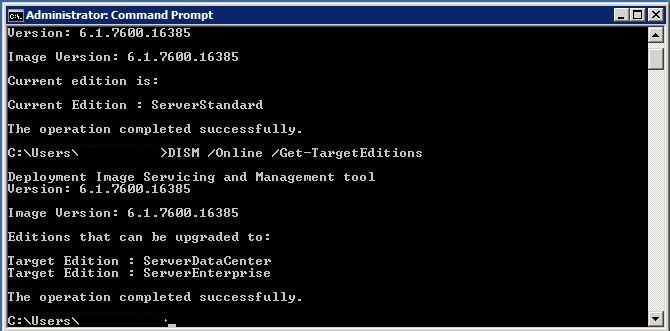
Type DISM
/Online /Get-TargetEditions to list the Windows editions to
which this server can be upgraded.
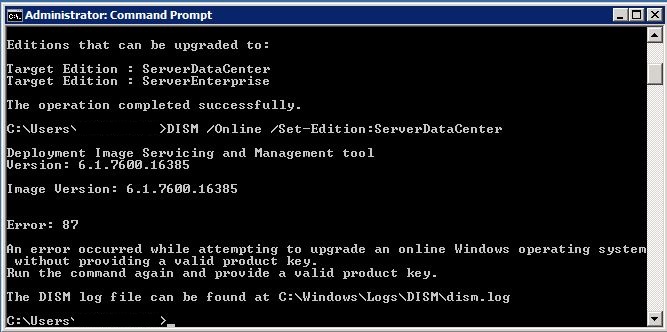
If you
type DISM /Online /Set-Edition:ServerDataCenter you’ll get the
message in the screenshot below. This is because even if you’re using a
KMS server for internal activation, you have to provide a product key.
Fortunately, Microsoft have a page that lists the KMS client setup
keys http://technet.microsoft.com/en-us/library/ff793421.aspx.
On this page you can find keys for Windows Server 2008 R2 Enterprise and
Datacenter.

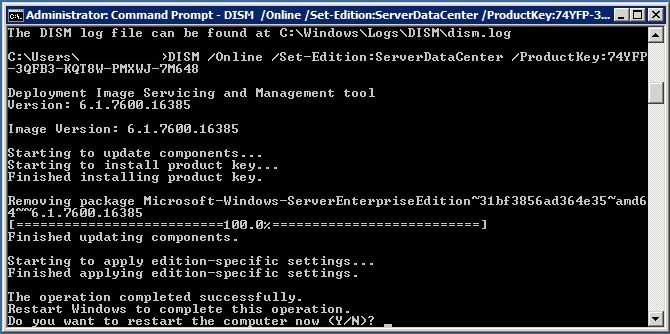
Typing DISM
/Online /Set-Edition:ServerDataCenter /ProductKey:xxxxxx will upgrade the
operating system. All that’s required to complete the upgrade is a
reboot.

|
|
|
|
|||
|
|
|
|
|||
|
|
|
|
|||
|
Platform
|
Operating
system edition
|
Product
key
|
|||
|
Windows 7 and Windows
Server 2008 R2
|
|||||
|
Client
|
Windows
7 Professional
|
FJ82H-XT6CR-J8D7P-XQJJ2-GPDD4
|
|||
|
Client
|
Windows
7 Professional N
|
MRPKT-YTG23-K7D7T-X2JMM-QY7MG
|
|||
|
Client
|
Windows
7 Professional E
|
W82YF-2Q76Y-63HXB-FGJG9-GF7QX
|
|||
|
Client
|
Windows
7 Enterprise
|
33PXH-7Y6KF-2VJC9-XBBR8-HVTHH
|
|||
|
Client
|
Windows
7 Enterprise N
|
YDRBP-3D83W-TY26F-D46B2-XCKRJ
|
|||
|
Client
|
Windows
7 Enterprise E
|
C29WB-22CC8-VJ326-GHFJW-H9DH4
|
|||
|
Server
|
Windows
Server 2008 R2 Web
|
6TPJF-RBVHG-WBW2R-86QPH-6RTM4
|
|||
|
Server
|
Windows
Server 2008 R2 HPC edition
|
TT8MH-CG224-D3D7Q-498W2-9QCTX
|
|||
|
Server
|
Windows
Server 2008 R2 Standard
|
YC6KT-GKW9T-YTKYR-T4X34-R7VHC
|
|||
|
Server
|
Windows
Server 2008 R2 Enterprise
|
489J6-VHDMP-X63PK-3K798-CPX3Y
|
|||
|
Server
|
Windows
Server 2008 R2 Datacenter
|
74YFP-3QFB3-KQT8W-PMXWJ-7M648
|
|||
|
Server
|
Windows
Server 2008 R2 for Itanium-based Systems
|
GT63C-RJFQ3-4GMB6-BRFB9-CB83V
|
|||
|
Windows Vista and Windows Server 2008
|
|||||
|
Client
|
Windows
Vista Business
|
YFKBB-PQJJV-G996G-VWGXY-2V3X8
|
|||
|
Client
|
Windows
Vista Business N
|
HMBQG-8H2RH-C77VX-27R82-VMQBT
|
|||
|
Client
|
Windows
Vista Enterprise
|
VKK3X-68KWM-X2YGT-QR4M6-4BWMV
|
|||
|
Client
|
Windows
Vista Enterprise N
|
VTC42-BM838-43QHV-84HX6-XJXKV
|
|||
|
Server
|
Windows
Web Server 2008
|
WYR28-R7TFJ-3X2YQ-YCY4H-M249D
|
|||
|
Server
|
Windows
Server 2008 Standard
|
TM24T-X9RMF-VWXK6-X8JC9-BFGM2
|
|||
|
Server
|
Windows
Server 2008 Standard without Hyper-V
|
W7VD6-7JFBR-RX26B-YKQ3Y-6FFFJ
|
|||
|
Server
|
Windows
Server 2008 Enterprise
|
YQGMW-MPWTJ-34KDK-48M3W-X4Q6V
|
|||
|
Server
|
Windows
Server 2008 Enterprise without Hyper-V
|
39BXF-X8Q23-P2WWT-38T2F-G3FPG
|
|||
|
Server
|
Windows
Server 2008 HPC
|
RCTX3-KWVHP-BR6TB-RB6DM-6X7HP
|
|||
|
Server
|
Windows
Server 2008 Datacenter
|
7M67G-PC374-GR742-YH8V4-TCBY3
|
|||
|
Server
|
Windows
Server 2008 Datacenter without Hyper-V
|
22XQ2-VRXRG-P8D42-K34TD-G3QQC
|
|||
|
Server
|
Windows
Server 2008 for Itanium-Based Systems
|
4DWFP-JF3DJ-B7DTH-78FJB-PDRHK
|
|||