Showing posts with label enterprise. Show all posts

Tuesday, September 17, 2013

In Place Upgrade Of Windows Server 2008 R2 Standard To Enterprise Or Datacenter Edition


In Place Upgrade Of Windows Server 2008 R2 Standard To Enterprise Or Datacenter Edition
 
If you want to upgrade a server running Windows Server 2008 R2 Standard to either the Enterprise, or Datacenter editions, it’s possible to do so online, without re-installing Windows.
Suggested Method will not disturb your existing Windows installation or applications installed on previous version.
Here i will show you the step by step upgradation of windows standard to datacenter edition, if you want to upgrade to Enterpise edition than just use "ServerEnterprise" insted of "ServerDataCenter" with Enterprise Product key as mentioned below product key table.
So are you ready to upgrade??? let's Start...

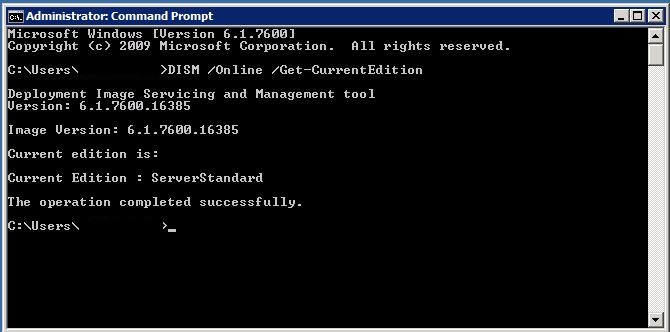
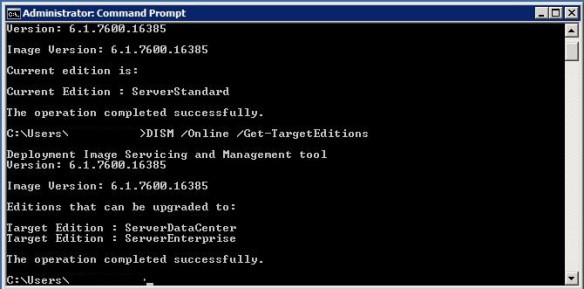
Open command prompt with run as Administrator rights and type DISM /Online /Get-CurrentEdition.  This will return the current Windows version.


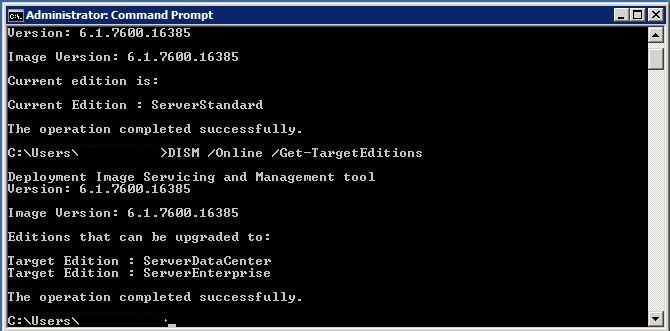
Type DISM /Online /Get-TargetEditions to list the Windows editions to which this server can be upgraded.


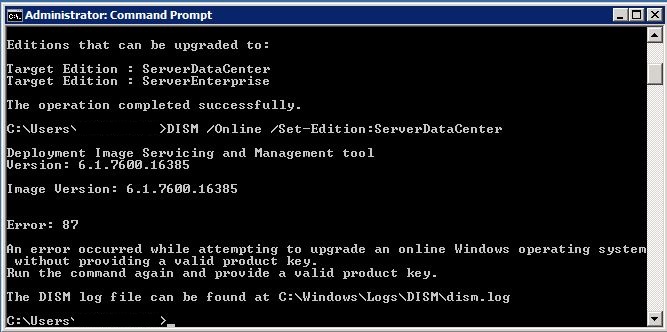
If you type DISM /Online /Set-Edition:ServerDataCenter you’ll get the message in the screenshot below.  This is because even if you’re using a KMS server for internal activation, you have to provide a product key.  Fortunately, Microsoft have a page that lists the KMS client setup keys http://technet.microsoft.com/en-us/library/ff793421.aspx.  On this page you can find keys for Windows Server 2008 R2 Enterprise and Datacenter.


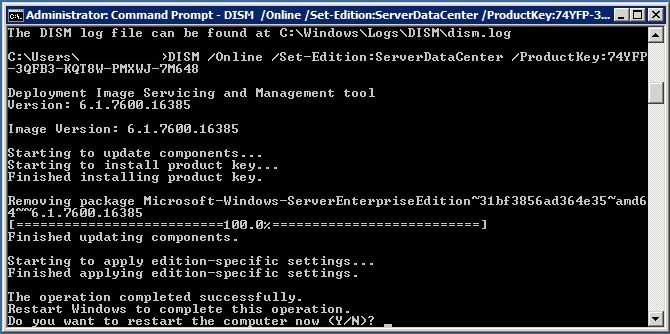
Typing DISM /Online /Set-Edition:ServerDataCenter /ProductKey:xxxxxx will upgrade the operating system.  All that’s required to complete the upgrade is a reboot.


Please find below Upgradation keys for diffrent possible versions, i recommend you to use Any time Upgrade for Client OS.


Platform
Operating system edition
Product key
Windows 7 and Windows Server 2008 R2
Client
Windows 7 Professional
FJ82H-XT6CR-J8D7P-XQJJ2-GPDD4
Client
Windows 7 Professional N
MRPKT-YTG23-K7D7T-X2JMM-QY7MG
Client
Windows 7 Professional E
W82YF-2Q76Y-63HXB-FGJG9-GF7QX
Client
Windows 7 Enterprise
33PXH-7Y6KF-2VJC9-XBBR8-HVTHH
Client
Windows 7 Enterprise N
YDRBP-3D83W-TY26F-D46B2-XCKRJ
Client
Windows 7 Enterprise E
C29WB-22CC8-VJ326-GHFJW-H9DH4
Server
Windows Server 2008 R2 Web
6TPJF-RBVHG-WBW2R-86QPH-6RTM4
Server
Windows Server 2008 R2 HPC edition
TT8MH-CG224-D3D7Q-498W2-9QCTX
Server
Windows Server 2008 R2 Standard
YC6KT-GKW9T-YTKYR-T4X34-R7VHC
Server
Windows Server 2008 R2 Enterprise
489J6-VHDMP-X63PK-3K798-CPX3Y
Server
Windows Server 2008 R2 Datacenter
74YFP-3QFB3-KQT8W-PMXWJ-7M648
Server
Windows Server 2008 R2 for Itanium-based Systems
GT63C-RJFQ3-4GMB6-BRFB9-CB83V
 
Windows Vista and Windows Server 2008
Client
Windows Vista Business
YFKBB-PQJJV-G996G-VWGXY-2V3X8
Client
Windows Vista Business N
HMBQG-8H2RH-C77VX-27R82-VMQBT
Client
Windows Vista Enterprise
VKK3X-68KWM-X2YGT-QR4M6-4BWMV
Client
Windows Vista Enterprise N
VTC42-BM838-43QHV-84HX6-XJXKV
Server
Windows Web Server 2008
WYR28-R7TFJ-3X2YQ-YCY4H-M249D
Server
Windows Server 2008 Standard
TM24T-X9RMF-VWXK6-X8JC9-BFGM2
Server
Windows Server 2008 Standard without Hyper-V
W7VD6-7JFBR-RX26B-YKQ3Y-6FFFJ
Server
Windows Server 2008 Enterprise
YQGMW-MPWTJ-34KDK-48M3W-X4Q6V
Server
Windows Server 2008 Enterprise without Hyper-V
39BXF-X8Q23-P2WWT-38T2F-G3FPG
Server
Windows Server 2008 HPC
RCTX3-KWVHP-BR6TB-RB6DM-6X7HP
Server
Windows Server 2008 Datacenter
7M67G-PC374-GR742-YH8V4-TCBY3
Server
Windows Server 2008 Datacenter without Hyper-V
22XQ2-VRXRG-P8D42-K34TD-G3QQC
Server
Windows Server 2008 for Itanium-Based Systems
4DWFP-JF3DJ-B7DTH-78FJB-PDRHK

Wednesday, July 11, 2012

How to Install Windows Storage Server 2008 R2 and the Microsoft iSCSI Software Target 3.3

How to Install Windows Storage Server 2008 R2 and the Microsoft iSCSI Software Target 3.3


Overview
You probably heard that Windows Storage Server 2008 R2 has been Released To Manufacturing (RTM) last week.
That means that the OEMs will soon deliver a new generation of Windows-based NAS appliances with a file server (SMB2, NFS) and an iSCSI Target (using the Microsoft iSCSI Software Target 3.3).

clip_image001


What you might have missed is that Windows Storage Server 2008 R2 is also now available to MSDN and TechNet subscribers for evaluation. This means subscribers can now use the Microsoft iSCSI Target 3.3 for Development, Test and all other non-production purposes.
While this was also the case for Windows Storage Server 2008, this new R2 release allows you to install the iSCSI Target on any existing Windows Server 2008 R2 by simply installing an MSI (Microsoft Installer) file. That’s much more convenient for Developers, Testers and IT Profressionals out there.
Usage Scenarios
Here are a few things you could do with the Microsoft iSCSI Software Target:
  • Setup a test environment for Hyper-V (using Windows Server 2008 or Windows Server 2008 R2) using iSCSI shared storage.
  • On a single laptop (with enough resources) create a development environment running a SQL Server cluster (two nodes, plus shared storage).
  • Evaluate Windows Server 2008 R2 Cluster Shared Volumes (CSV) and Hyper-V Live Migration, using only regular Windows Server hardware.
You are probably thinking of a few other ways to use this. If they are for evaluation (TechNet Plus or MSDN), demonstration (MSDN), development (MSDN) or test (MSDN), they are probably good scenarios as well.
Download
Find below the information from the MSDN/TechNet site where you download the bits:
  • Name: Windows Storage Server 2008 R2 Embedded (Standard, Enterprise, Workgroup) with iSCSI Software Target 3.3 (x64) - DVD
  • Size: 947 (MB)
  • File Name: mu_windows_storage_server_2008_r2_embed_stand_ent_work_with_iscsi_software_target_3.3 _x64_dvd_587719.iso
  • Date Published (UTC): 9/27/2010 3:01:52 PM
  • Last Updated (UTC): 9/27/2010 3:01:52 PM
  • SHA1: CAC10773B6DD63FD397F5F00252B252CAF70EE40
  • ISO/CRC: 0C19C89F
  • Instructions and Resources: You must first install Windows Server 2008 R2 before installing this product. The license agreement for this product references a 180-day term. This download will retain full functionality even after 180 days. The following languages are included in this download: Chinese-Simplified, Chinese-Traditional, English, French, German, Italian, Japanese, Korean, Portuguese-Brazil, Russian, and Spanish.
No keys are required for this download.
Unpacking
The file you will find on MSDN/TechNet is, as you saw above, an ISO file. To look inside of that, you can burn that ISO file to a physical DVD or use one of the many tools that can mount an ISO image as a virtual DVD.
Inside that ISO file there is an executable file (Windows_Storage_Server_2008_R2+iSCSI_SW_Target_33.exe), which you need to run to unpack the two ISO files inside (iSCSI_Software_Target_33.ISO and Windows_Storage_Server_2008_R2.ISO).
Inside the iSCSI_Software_Target_33.ISO file, in the x64 folder, you will find three MSI files, one of which is the only file that you really need to install the iSCSI Target, called iscsitarget.MSI.
To help you understand the installation process, here’s a little diagram of the required steps to unpack and deploy Windows Storage Server 2008 R2 from that executable file.
Understanding the Files
To be clear, here are the names of the outer ISO (the file you download from MSDN/TechNet), the EXE file and the two inner ISO files:
  • mu_windows_storage_server_2008_r2_embed_stand_ent_work_with_iscsi_software_target_3.3 _x64_dvd_587719.iso
    • Windows_Storage_Server_2008_R2+iSCSI_SW_Target_33.exe
      • iSCSI_Software_Target_33.iso
      • Windows_Storage_Server_2008_R2.iso 

Install just the iSCSI Target
If you’re installing the just iSCSI Target on a virtual machine, you can just mount the iSCSI_Software_Target_33.ISO file as a virtual DVD and run the \x64\iscsitarget.msi file inside it.
If you’re running the target on a physical server, you can burn the iSCSI_Software_Target_33.ISO file to a physical DVD or use one of the many tools that can mount an ISO image.
Another option for physical server is to copy the jut the iscsitarget.MSI that’s inside iSCSI_Software_Target_33.ISO file to a USB disk or file share and install from there.

How to install Storage Server ?


Step 1: Install Windows Server 2008 R2 on the reference computer (use Windows Server 2008 R2 Standard as the basis for the Workgroup and Standard editions of Windows Storage Server 2008 R2, and use Windows Server 2008 R2 Enterprise as the basis for Windows Storage Server 2008 R2 Enterprise) Step 2: (Optional) Install language packs. Windows Storage Server 2008 R2 supports 11 languages.

Step 3: Install the Windows Server 2008 R2 operating system updates that are provided in the Windows Server 2008 R2 OPK. Step 4: Install the storage server-specific features that are provided in the Windows Server 2008 R2 Application Pack. Step 5: Add and configure the Remote Desktop Protocol (RDP) website. This enables access to storage appliances over a network. Step 6: (Optional) Add performance-specific registry keys. These keys increase the performance of the storage appliance when it is used as a file server. Step 7: (Optional) Set Windows PowerShell™ execution policy. This policy must be enabled if you customize the end user setup experience. Step 8: Enable Windows Remote Management. This policy must be enabled if your storage appliance will be part of a failover cluster. Step 9: (Optional) Install non-Microsoft applications. Complete this task only if your end users need to use custom applications to set up or manage the storage appliance. Step 10:(Optional) Add your OEM software license terms in all the supported languages. If you need end users to accept your software license terms during the appliance setup, you need to add the agreement to your installation.