Showing posts with label OWA. Show all posts

Thursday, November 20, 2014

Exchange 2013 Outlook and OWA Search Does Not Work

Exchange 2013 Outlook and OWA Search Does Not Work

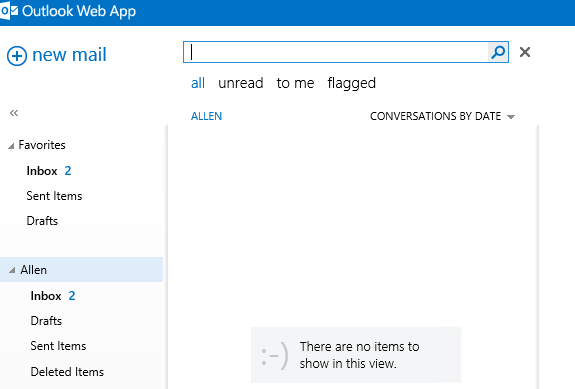
As with all previous versions of OWA, Exchange 2013 has a search function that is above the mail column as seen below.
Exchange 2013 owa search
I came across an issue recently where if you did a search in OWA 2013, no results would be show, no matter what information I used as the search keywords. No matter what no search results where found. In Exchange 2013 , the search index is stored with the Mailbox store where the users are located. To resolve this issue and build the OWA 2013  and the Exchange search index again we needed to do the following. This error may also occur withOutlook clients that are not in cached mode.
1) Stop Service
 navigate to services stop the Microsoft Exchange Search & Microsoft Exchange Search Host Controller service.
2) Locate User Mailbox Database.
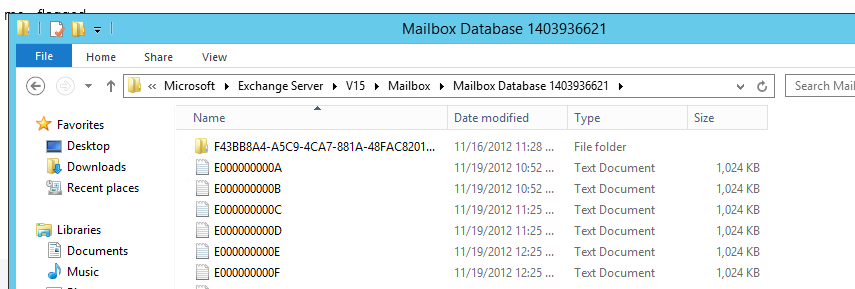
Once done locate the folder on your server where the Mailbox database is where the user is trying  to search from. For example mine is here.
C:\Program Files >Microsoft > Exchange Server > V15 > Mailbox > Mailbox Database 1403936621
Exchange 2013 Search database
If you are unsure where the the mailbox database is use the command below from power-shell.

Get-MailboxDatabase "yourmailboxdatabase" |fl name,*path*
Once the path is located you will find a folder name with a long “GUID” and the word Single on the end.

exchange 2013 search guid
3) Rename this folder .old.
We then need to start the Microsoft Exchange Search service again, The server will now begin to rebuild its search index.
Give it plenty of time to rebuild then issue the command below and make sure the status of Content Index Status is seen as healthy.
Get-MailboxDatabaseCopyStatus
As seen below, if it says healthy try your search and you should see that your search results now appear in Outlook and OWA 2013.

Exchange 2013 rebuild search index

Thursday, October 11, 2012

Microsoft Exchange 2010 OWA not able to Open.

Hello Friends,

Today i will show you how to resolve Outlook Web Access isses in Microsoft Exchange 2010 after installing Updates / SP upgrade.

After Installing Service Pack of Update OWA stops working with below error.

Error :

Microsoft.Exchange.Clients.Owa.Core.OwaThemeManagerInitializationException
Exception message: Couldn’t find a base theme (folder name=base)


Solution :

1) Open Microsoft Exchange Power Shell
2) Go to "C:\Program Files\Microsoft\Exchange Server\V14\Bin"
3) run CAS Powershell Script by using this command "./UpdateCas.ps1"
4) Restart IIS

And it's Done!!!!

hope this solution helps you..please write any suggetions or correct me if any correction needed.

Have a Good Day!!!!


Saturday, August 18, 2012

The Exchange Management Shell is missing and how to recover


Hello Friends,

Recently i have installed Microsoft Exchange 2010 on Server 2008 R2 with fully updated OS, All configuration went well and tested all services,OWA, Microsoft Console, etc...

After all necessary Testing i have decided to Upgrade Exchange 2010 with Service pack 2, then suddenly Outlook Web Access Was not working properly with below error.

Error : 

Outlook Web App didn’t initialize. If the problem continues, please contact your helpdesk.
Couldn’t find a base theme (folder name=base)


Problem: After installing Service Pack 2 for Exchange Server 2010, the Exchange Management Shell is missing.
Cause: Missing certain .ps1 scripts from the bin directory, removed during SP2 setup.

Resolution: There is no resolution at this time.


Workaround:


1.
Verify that the ConnectFunctions.ps1 , RemoteExchange.ps1 and CommonConnectFunctions.ps1 files are present in the %ExchangeInstallPath%\bin directory.

NOTE : If these files are missing, you can copy the files from the Exchange Server 2010 Service Pack 1 installation media to the %ExchangeInstallPath%\bin directory.
These files are present in the \setup\serverroles\common folder.
2.
Right click an open area on the Desktop, click New , click Shortcut .
3.
In the Type the location of the item , type in the text below:
%SystemRoot%\System32\WindowsPowerShell\v1.0\powershell.exe -noexit -command ". '%ExchangeInstallPath%\bin\RemoteExchange.ps1'; Connect-ExchangeServer -auto"
4.
Name the shortcut Exchange Management Shell and click Finish .
5.
Right click the Exchange Management Shell shortcut, click Properties and remove the text from Start In field on the Shortcut tab.
6.
On the Shortcut tab, click Change Icon , click Browse and type in the text below:
%SystemRoot%\Installer\{4934D1EA-BE46-48B1-8847-F1AF20E892C1}\PowerShell.exe
7.
Select the Exchange icon and click OK .
8.
Click Apply and click OK .
9.
Copy the new Exchange Management Shell shortcut to this location:
%systemdrive%\ProgramData\Microsoft\Windows\Start Menu\Programs\Microsoft Exchange Server 2010

Run this Command to fix Outlook Web Access Problem :

1) Open Exchange Management Shell and run Power shell script which is located on below path..
C:\Program Files\Microsoft\Exchange Server\V14\Bin\UpdateCas.ps1 


Good Luck...